Cheerleader jumping with pom-poms
CheerTime

Bring on the cheer.

CheerTime

Competition Timeline

Who are you here to cheer for?

Choose your main program to personalize CheerTime. You can change it in Settings anytime.

Settings & Help

Your program

Favorite reminders

Save a performance with its heart, then choose when to get a nudge.

In-app nudges work while CheerTime is open. Use calendar reminders for alerts with your phone locked.

Competition timing

Positive = running late. Negative = ahead. Adjusts your schedule and reminders only.Farmington Tiger Classic · November 21, 2026 · Central Time

Add CheerTime to your Home Screen

Keep the running order a tap away with the cheerleader icon on your phone.

iPhone · Safari

Open CheerTime in Safari, then follow these five steps. Pink highlights show where to tap.

  1. Open Safari’s page menu

    Tap the menu beside the address bar at the bottom of Safari. If Safari already shows a Share button, tap it and continue to step 3.
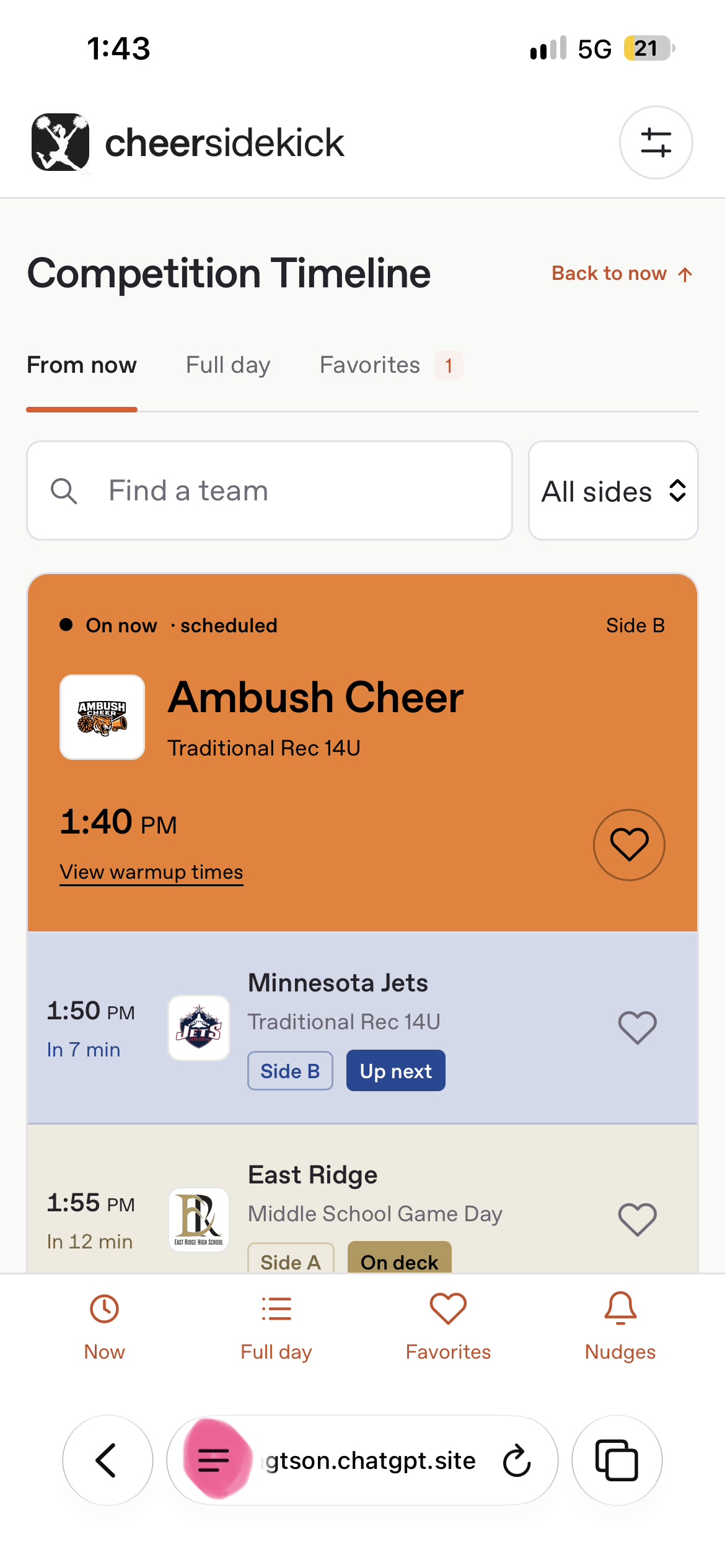
    Safari page menu beside the address bar, highlighted in pink
    Enlarge screenshot ↗
  2. Tap Share

    Choose Share at the top of the page menu. Look for the square with an upward arrow.
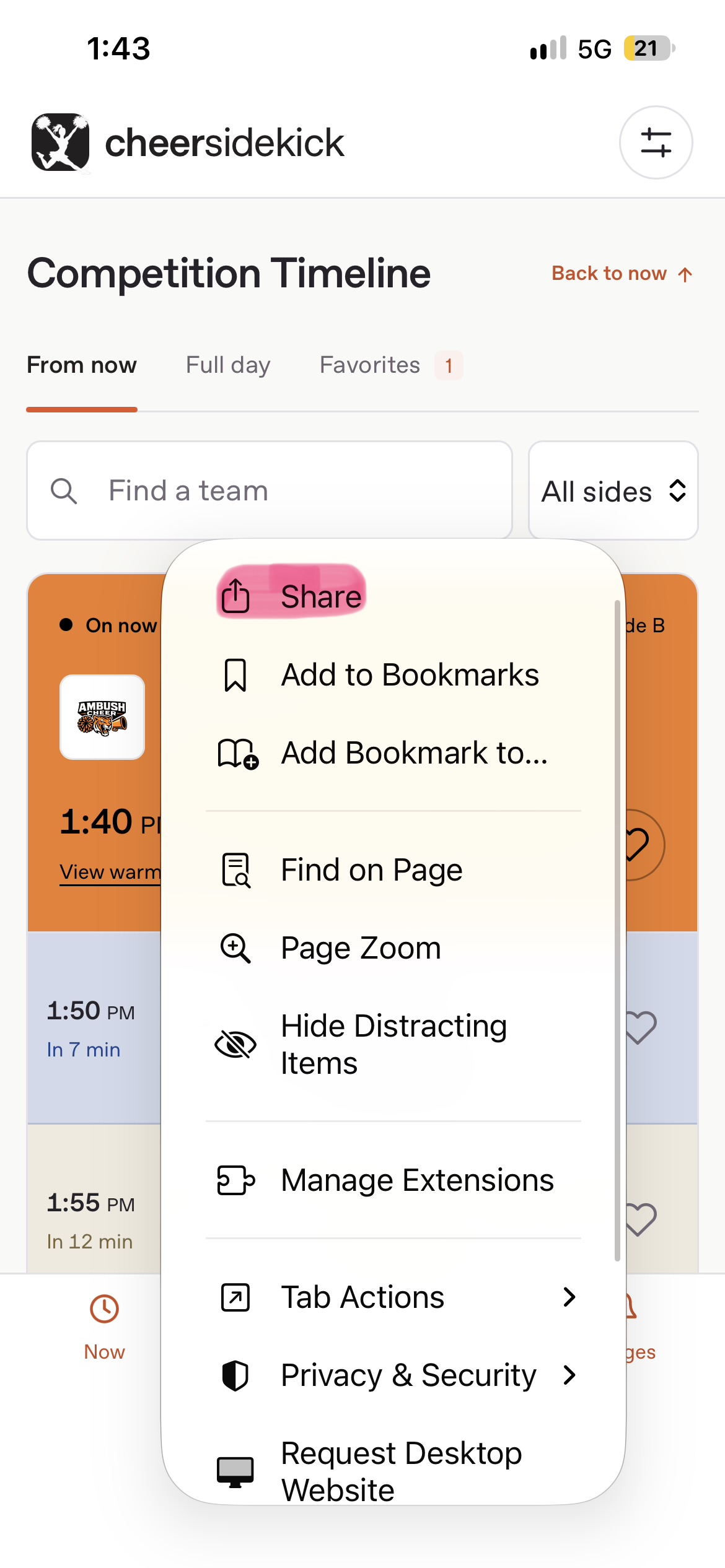
    Share action at the top of Safari’s page menu, highlighted in pink
    Enlarge screenshot ↗
  3. Show more actions

    Tap View More at the bottom right of the share sheet. If the full action list is already open, continue to step 4.
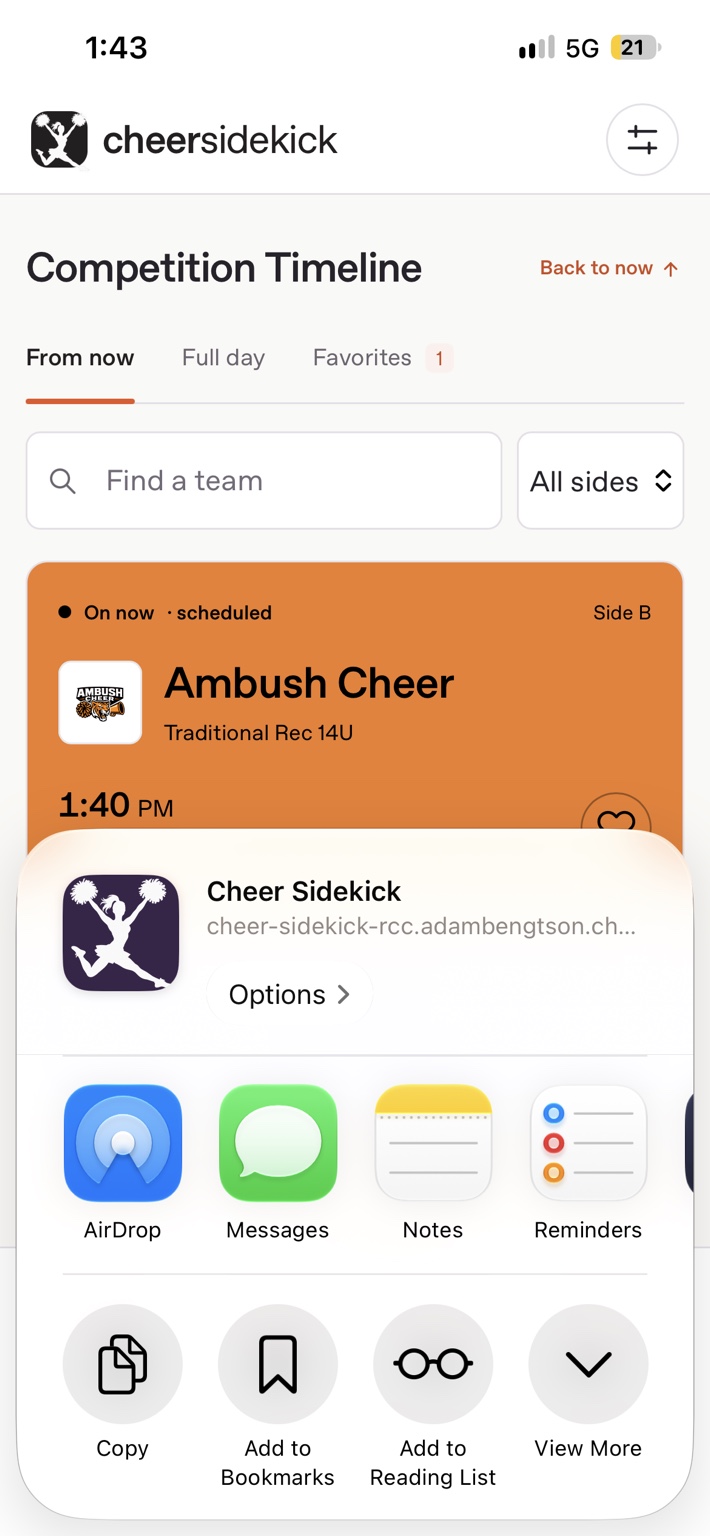
    Safari share sheet with View More at the bottom right
    Enlarge screenshot ↗
  4. Add to Home Screen

    Scroll through the actions and tap Add to Home Screen, highlighted in pink.
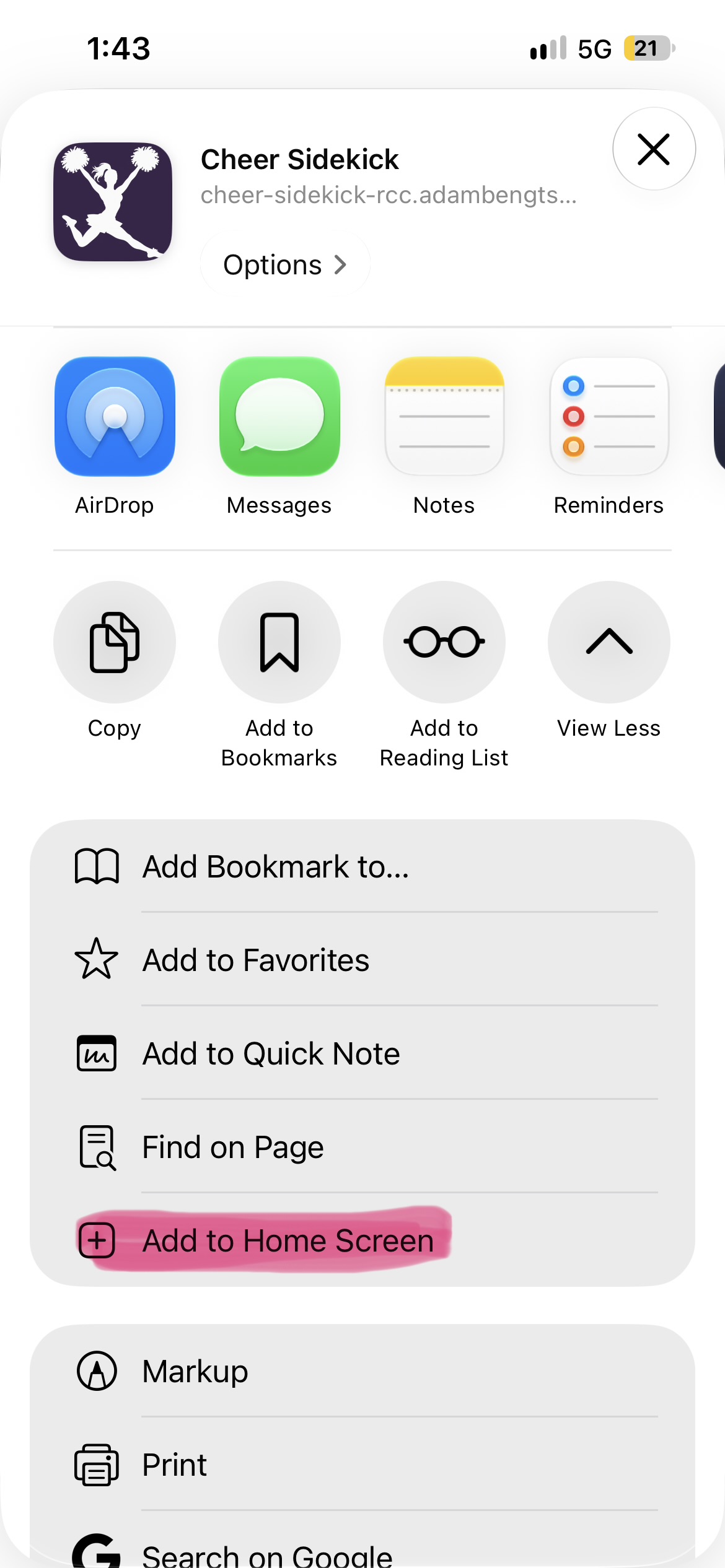
    Add to Home Screen action in the expanded Safari share sheet, highlighted in pink
    Enlarge screenshot ↗
  5. Name it CheerTime, then Add

    Keep CheerTime as the name and Open as Web App switched on. Tap Add at the top right, then find the cheerleader icon on your Home Screen.
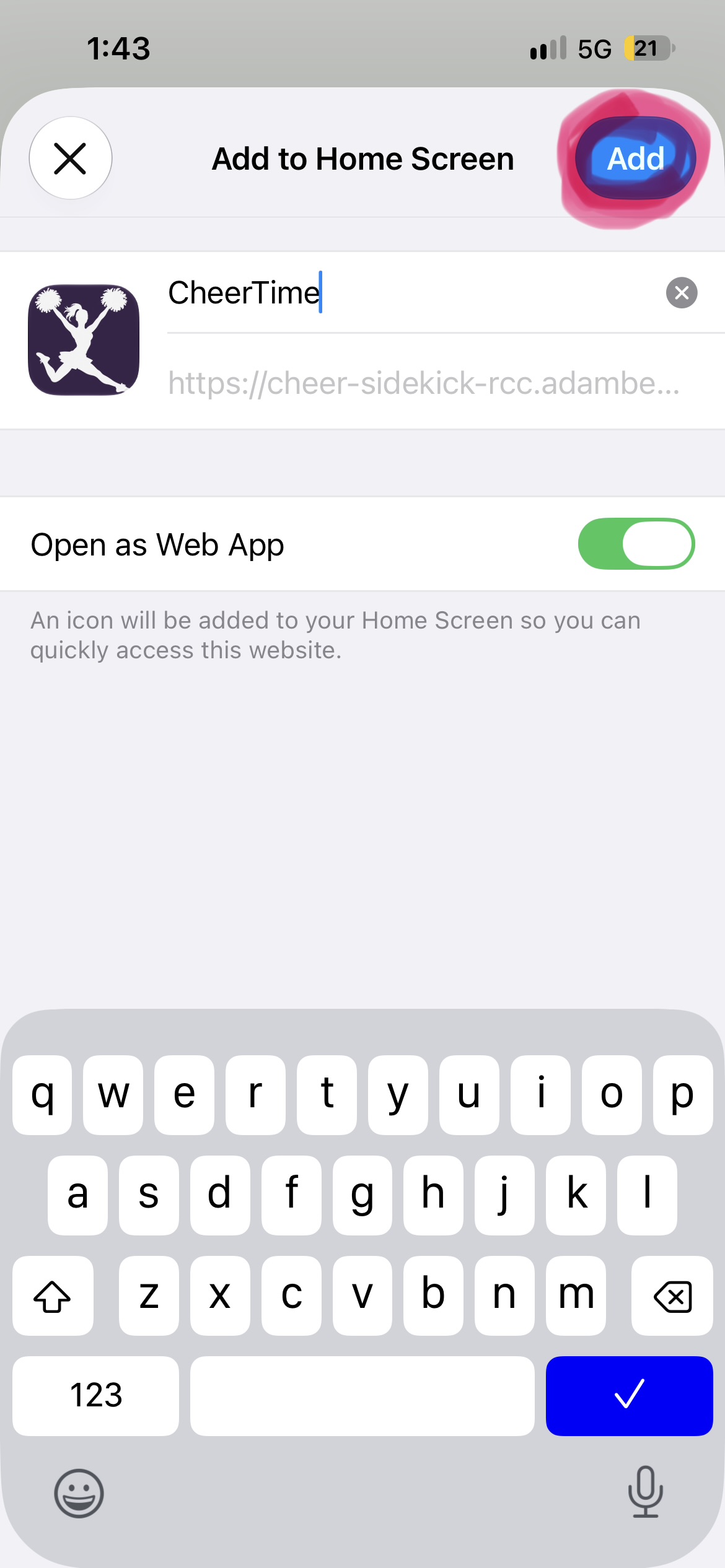
    CheerTime name, enabled Open as Web App switch, and highlighted Add button
    Enlarge screenshot ↗

Screenshots show earlier branding. Your new CheerTime icon uses the program selected in Settings. Choose your program before adding it; an existing Home Screen icon may need to be removed and added again.

Already see a Share button? Start at step 3. If Add to Home Screen is missing, use Edit Actions in Safari’s share sheet to add it.

Android · Chrome

Open CheerTime in Chrome, tap the three-dot menu, then choose Add to Home screen or Install app and follow the prompts.


Apple’s illustrated iPhone guide ↗

Help & tour

How does the schedule work?

“From now” starts at the current scheduled performance and continues through every remaining team, break and award. “Full day” includes earlier performances. Scroll the page normally; Back to now takes you to the current slot.

Timing is estimated from the published schedule. Use Competition timing above to account for delays.

Program logos & sources

Official school or program icons are used where available. Big Lake Hive and Bolts Cheerleading use initials where an authentic logo is unavailable. Bolts uses neutral colors.

Try a different timeUses the real schedule with a simulated clock. Nudges are paused.

Your program, favorites and preferences stay on this device.