Add CheerTime to your Home Screen
Keep the running order a tap away with the cheerleader icon on your phone.
iPhone · Safari
Open CheerTime in Safari, then follow these five steps. Pink highlights show where to tap.
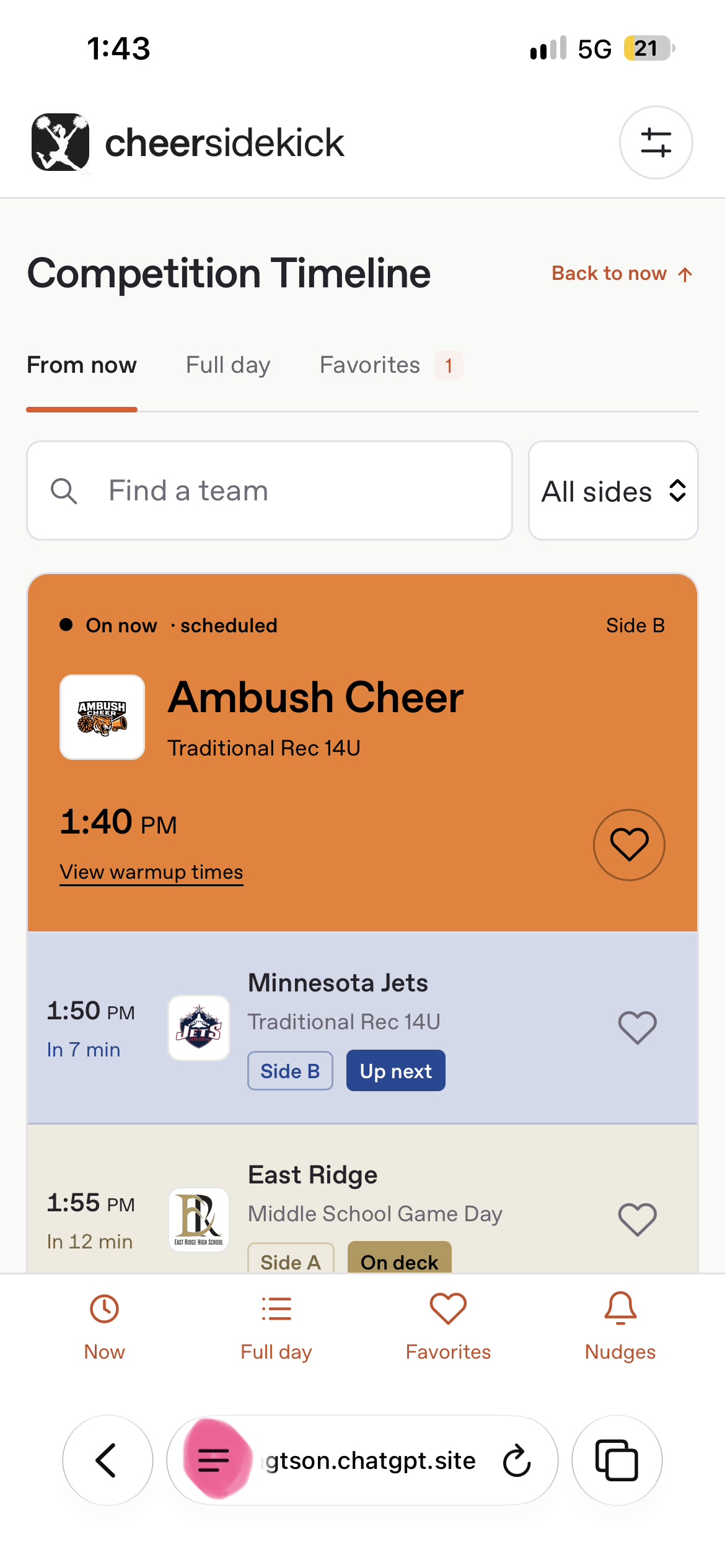
Open Safari’s page menu
Tap the menu beside the address bar at the bottom of Safari. If Safari already shows a Share button, tap it and continue to step 3.
 Enlarge screenshot ↗
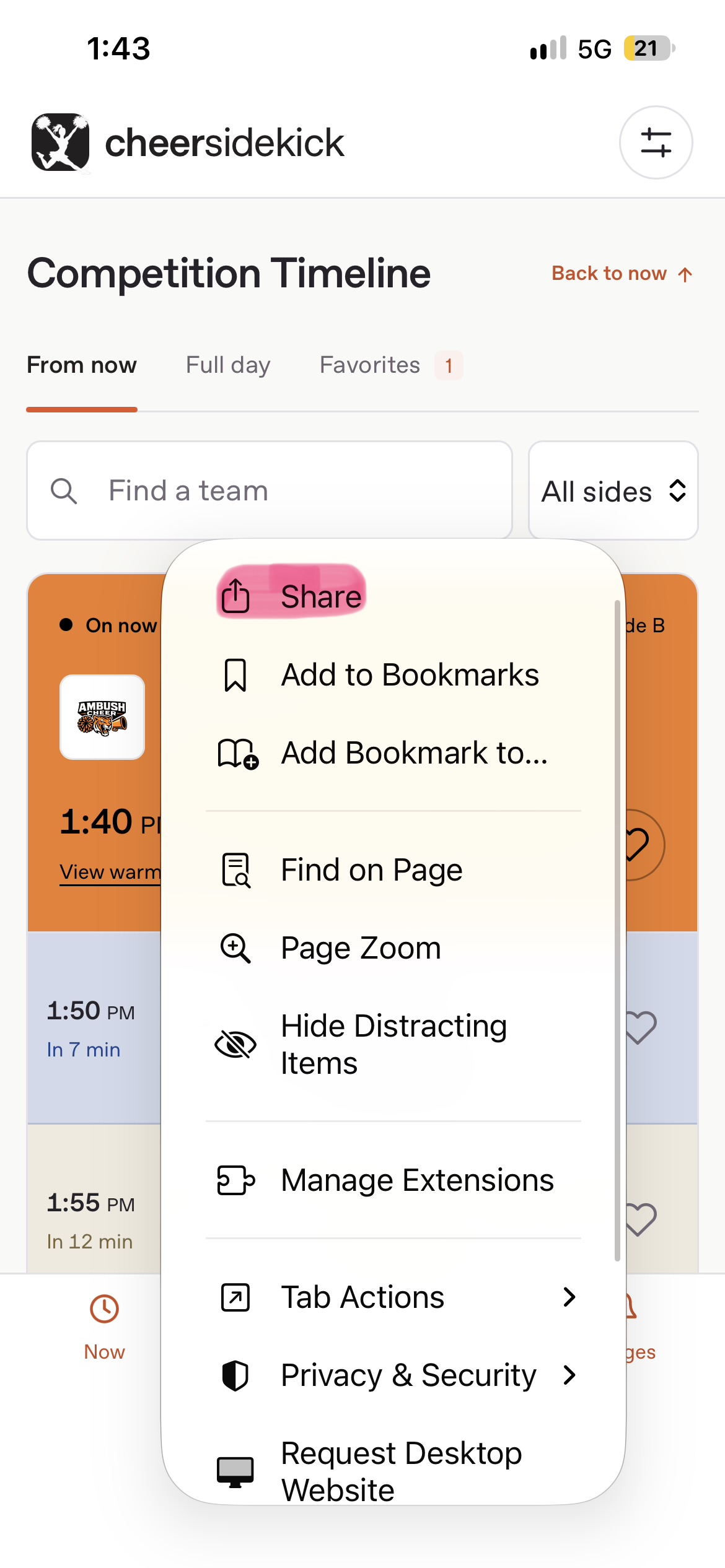
Tap Share
Choose Share at the top of the page menu. Look for the square with an upward arrow.
 Enlarge screenshot ↗
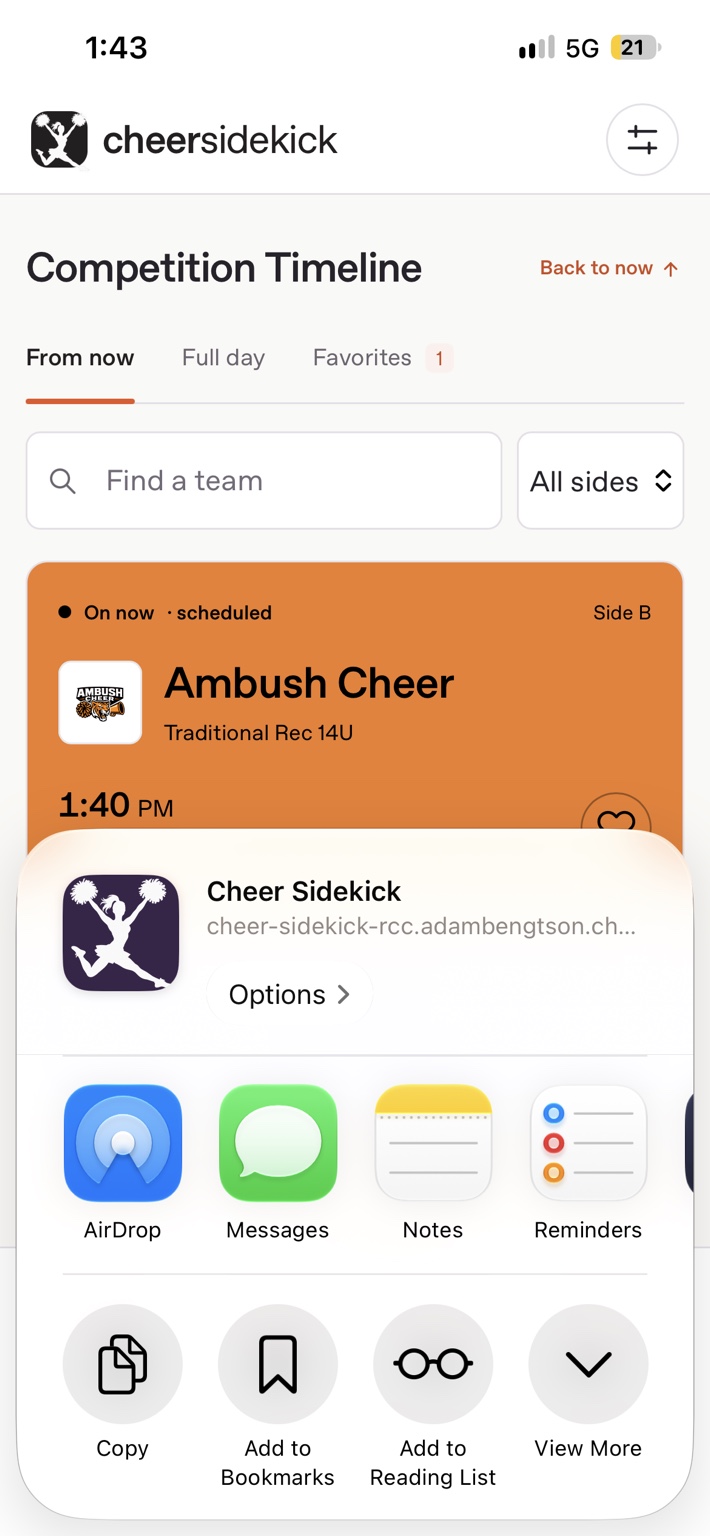
Show more actions
Tap View More at the bottom right of the share sheet. If the full action list is already open, continue to step 4.
 Enlarge screenshot ↗
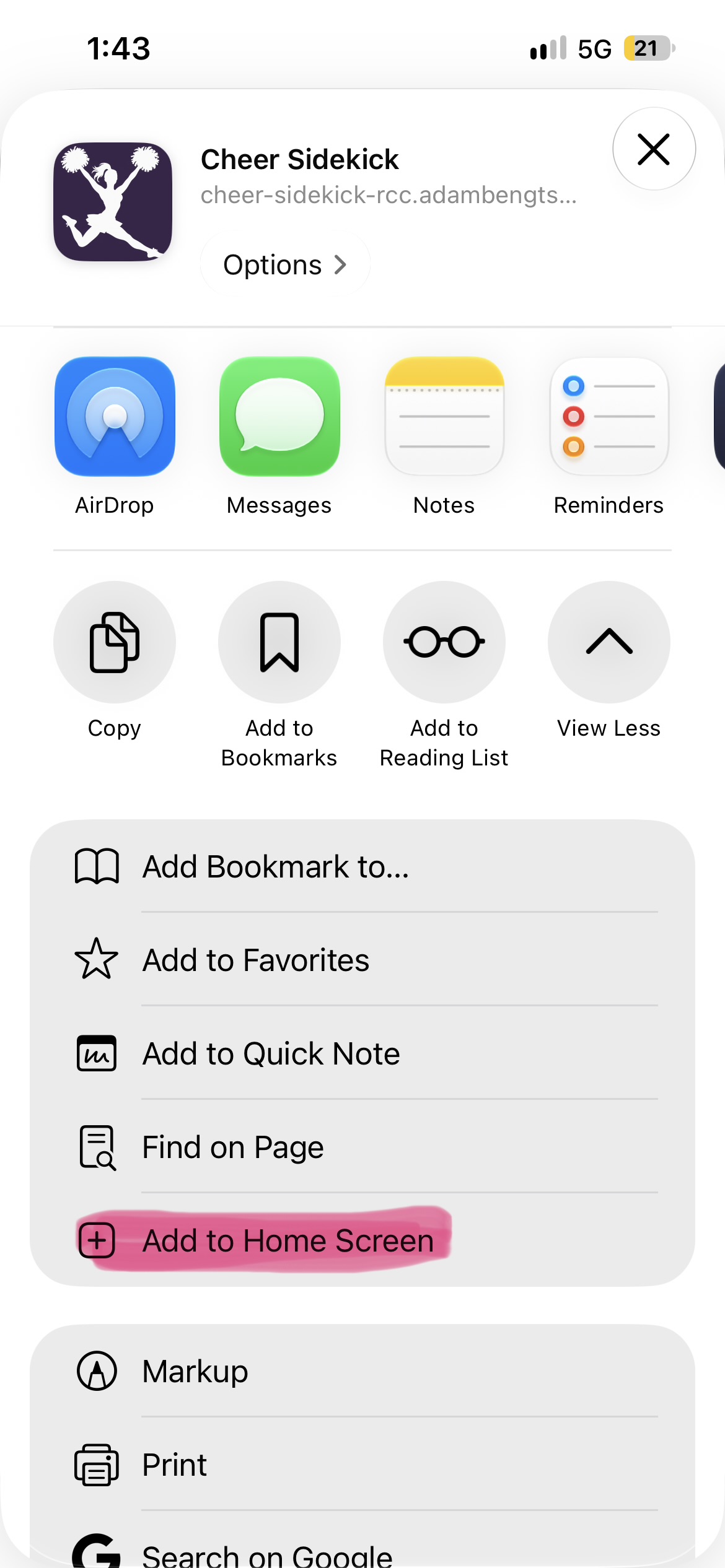
Add to Home Screen
Scroll through the actions and tap Add to Home Screen, highlighted in pink.
 Enlarge screenshot ↗
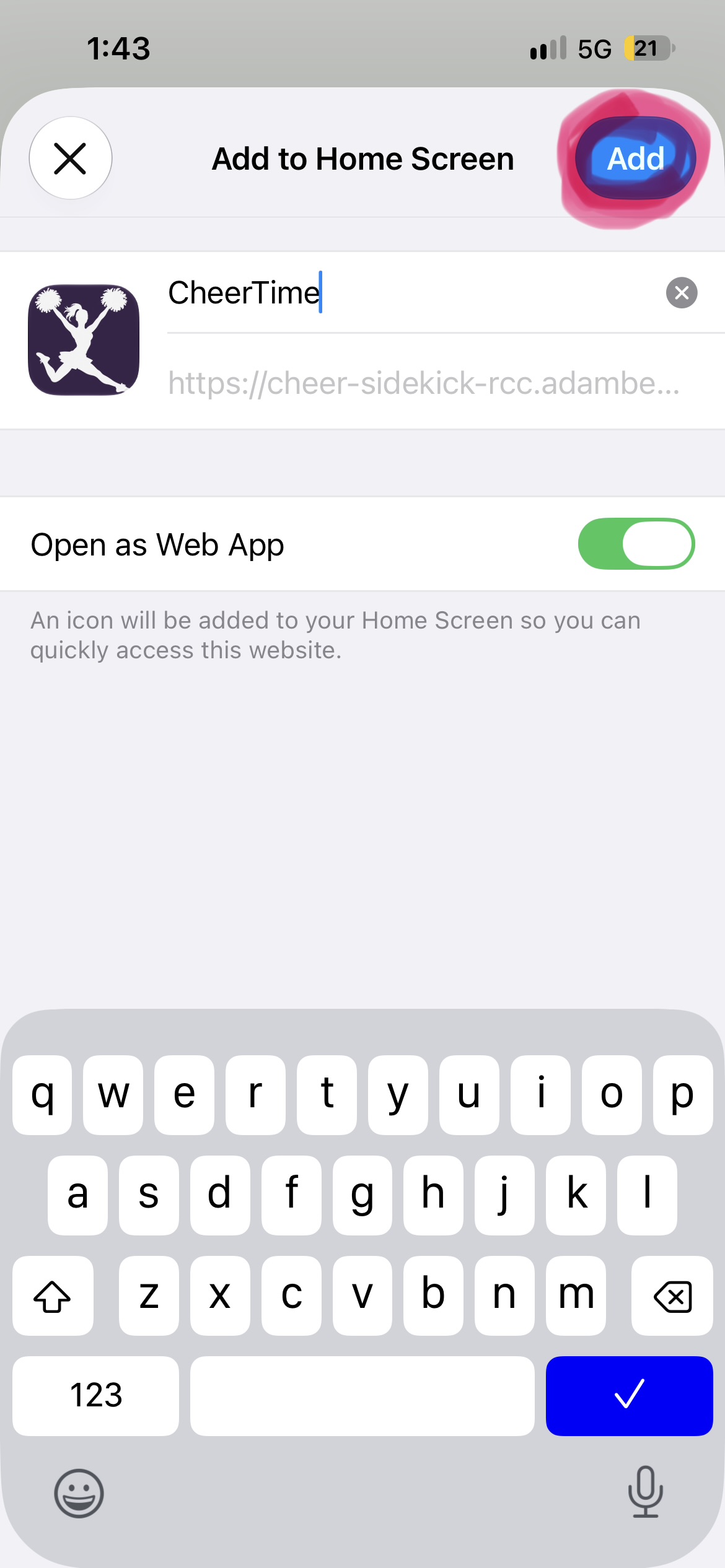
Name it CheerTime, then Add
Keep CheerTime as the name and Open as Web App switched on. Tap Add at the top right, then find the cheerleader icon on your Home Screen.
 Enlarge screenshot ↗
Screenshots show earlier branding. Your new CheerTime icon uses the program selected in Settings. Choose your program before adding it; an existing Home Screen icon may need to be removed and added again.
Already see a Share button? Start at step 3. If Add to Home Screen is missing, use Edit Actions in Safari’s share sheet to add it.
Android · Chrome
Open CheerTime in Chrome, tap the three-dot menu, then choose Add to Home screen or Install app and follow the prompts.